How to use
Actuals reads the Claude Code sessions already on your machine and tells you what your agents actually shipped: what was kept, what died, what it cost. One command, about a second. Nothing leaves your machine unless you choose to share your numbers, and you see them first.
$npx actuals$npx actuals watch01 Run it and read the sentence.
The report opens in your browser on 127.0.0.1 and lands on the overview: how many files your agents wrote in this window, and how many are still on disk. Under it is the receipt for the period: what the tokens cost at list rates, how many commits the sessions made, the cost per commit, and how many agent runs finished with nothing to show.
- Anything marked MEASURED was read from transcripts and git. ESTIMATED means priced at list rates.
- The badge on the right says what left your machine: 0 bytes uploaded. Click it for how each figure is counted.
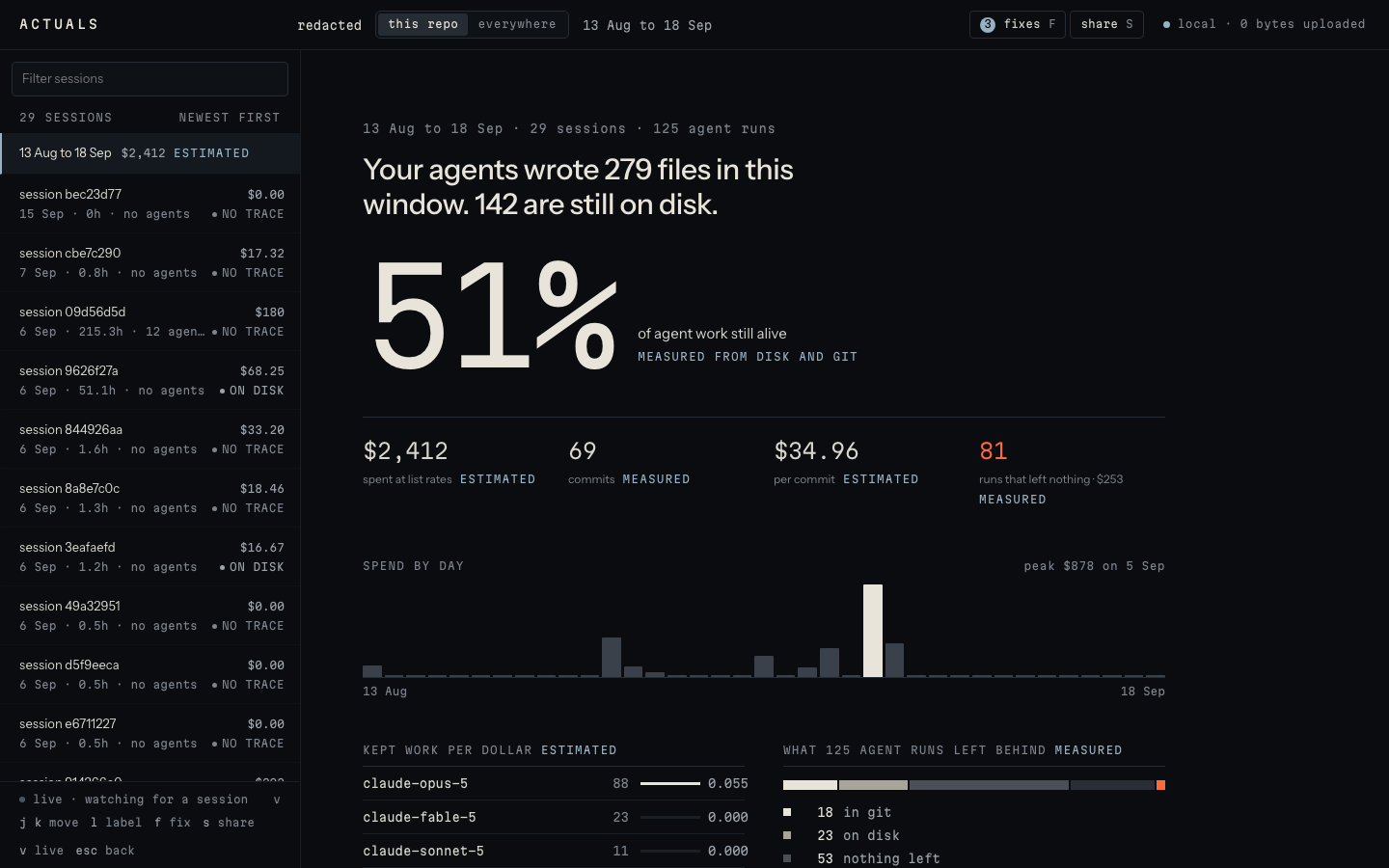
The overview. The sentence first, then the receipt, then where the money went. 02 Pick the scope.
Two buttons in the top bar decide which sessions count: this repository, or every project on the machine. Either one re-runs and takes about a second. The box above the session list filters that list by title as you type, so a long month is a couple of keystrokes from the session you want.
- everywhere shows a session that ran in another folder; this repo brings you back.
- Type in the filter box to narrow the list. The count under it follows.
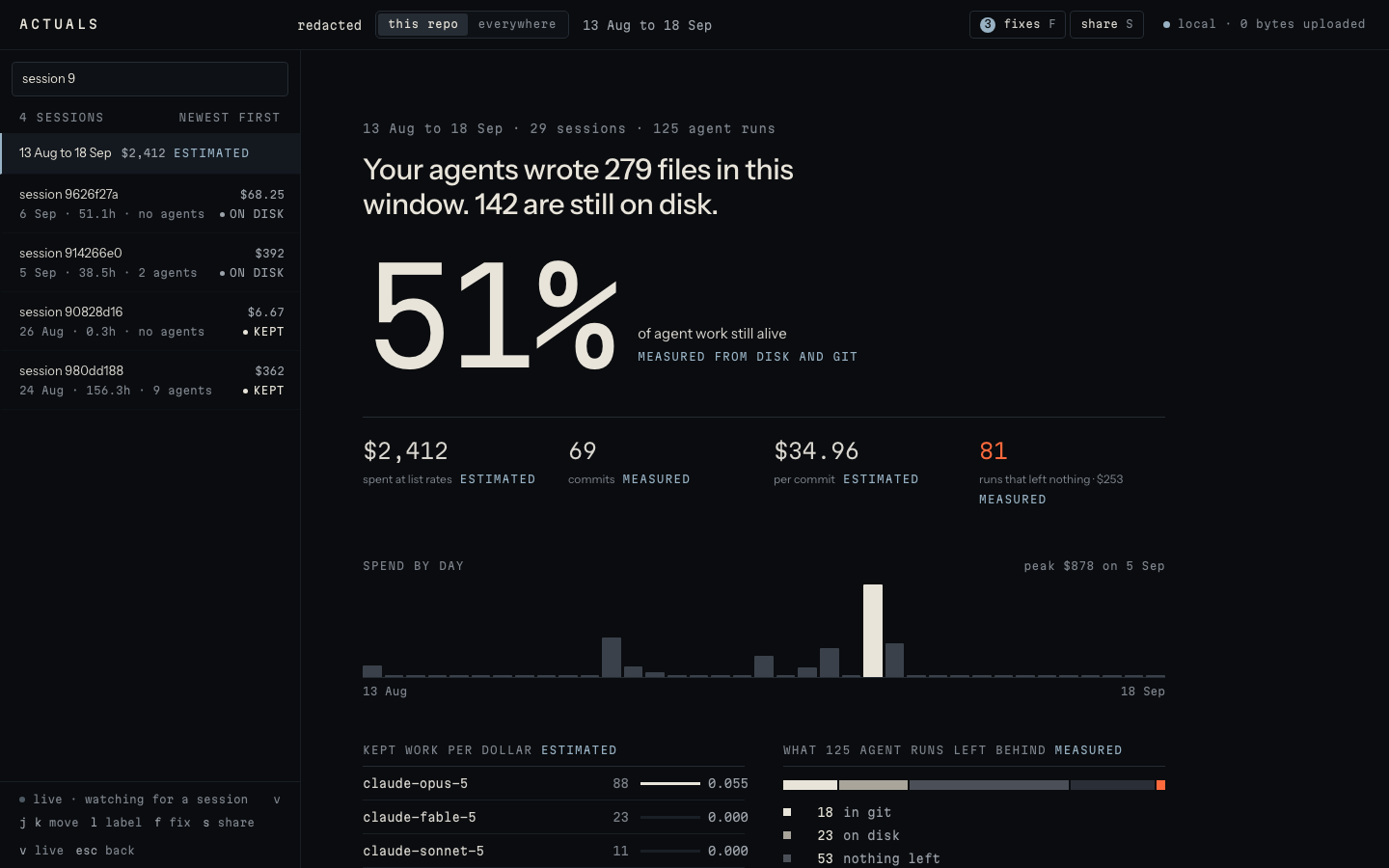
The filter in use. The count above the list says how many sessions are left. 03 Open a session.
The list on the left is newest first, with each session's cost, hours, agents and outcome. Click one, or press j and k to move through them. The session opens on its verdict, then its agents drawn to time, then every run with its model, its minutes, its cost and what it left behind.
- in git, on disk, nothing left, unknown or died is what became of a run's work. A run expands to the files it wrote.
- The curve above the bars is that session's concurrency: how many agents were alive at once.
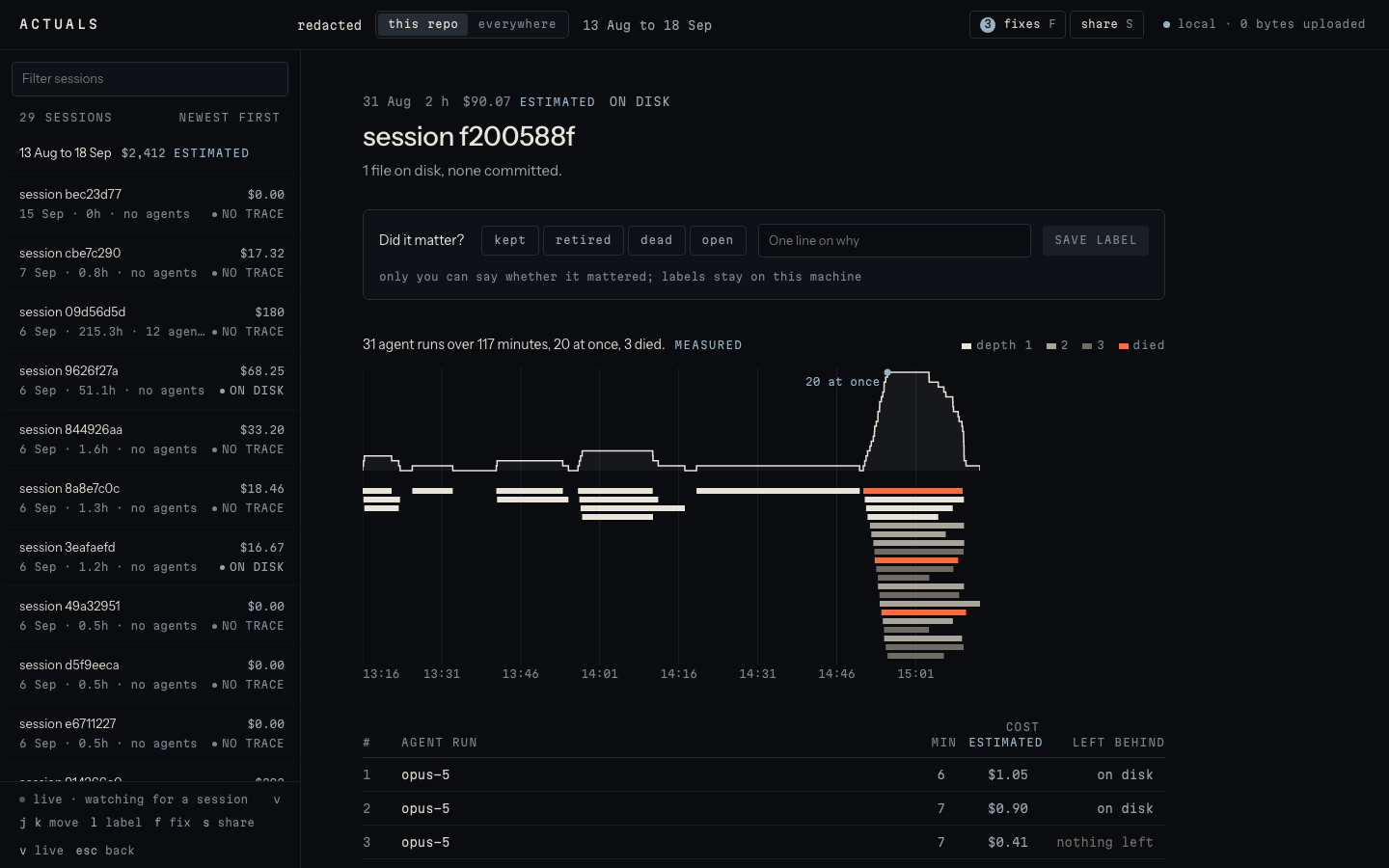
One session: its agents drawn to time, then every run under them. 04 Say whether it mattered.
The tool measures what happened on disk and in git. Only you know whether the work mattered. Label the session in one click and add a line on why. Labels stay on this machine and are never overwritten.
- Pick kept, retired, dead or open, type why, then save label. l cycles the states without the mouse.
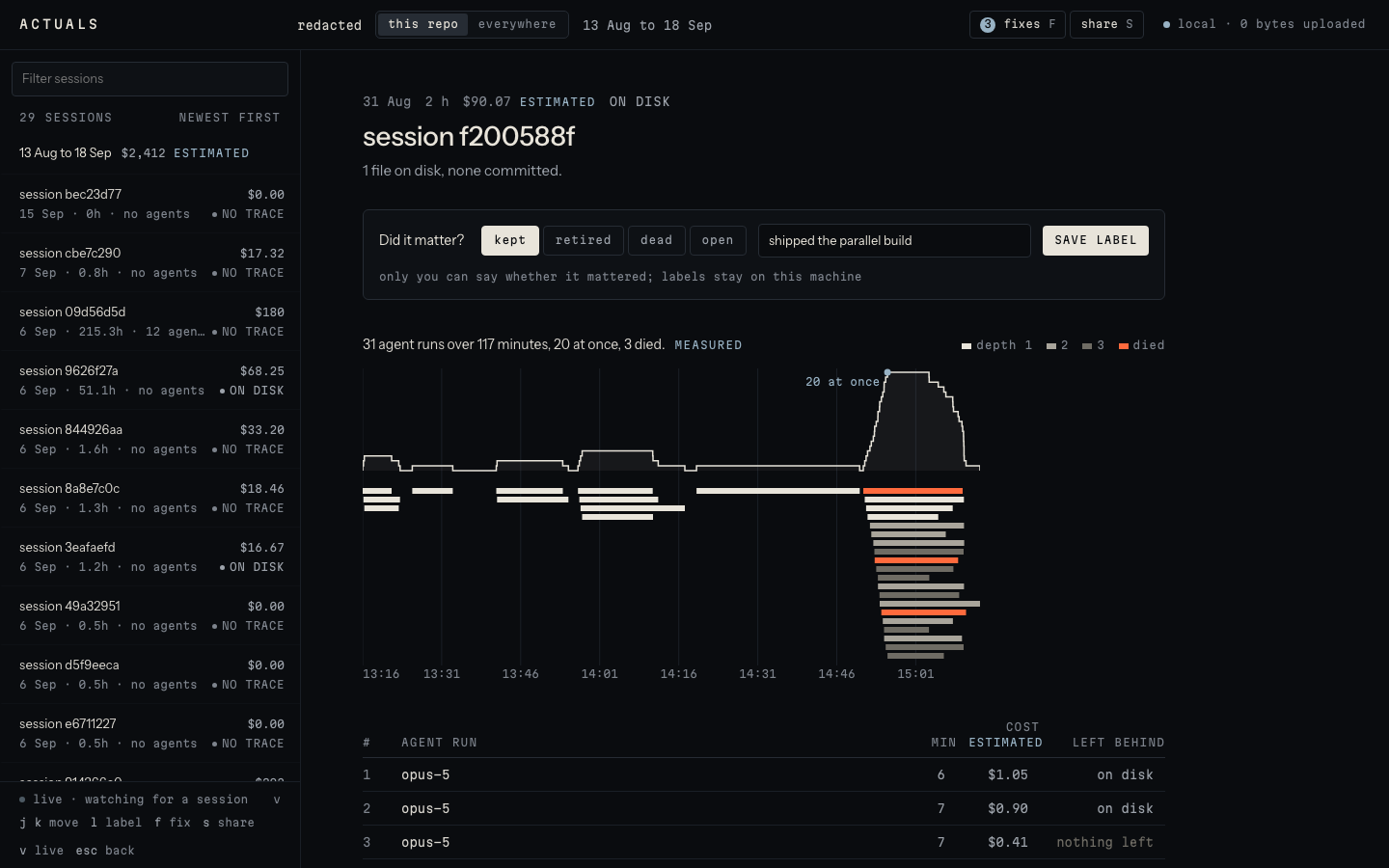
The label row sits above the session's agent runs. The note is one line, for you. 05 Watch a session live.
v opens the live view: agents appear as they start, go warm the moment one dies, and the cost ticks as tokens are spent. It works once
npx actuals watchhas installed the hooks.- Open it, then start Claude Code in the same repository. The tree draws itself in place.
- The strip on the right is the line the status bar carries, and under it, whether yesterday's kept work is still kept today.
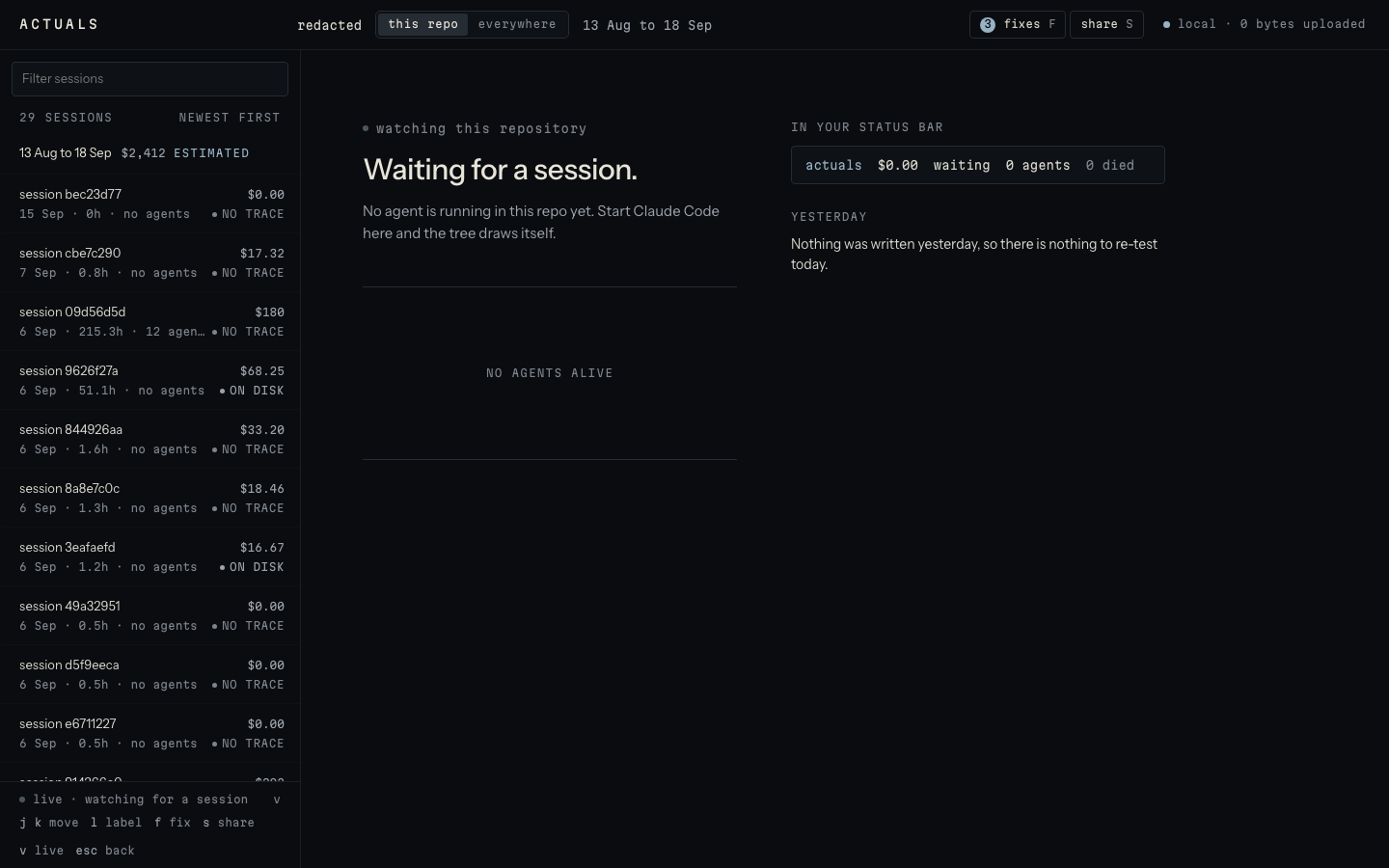
Before a session starts. Once one runs, the agents draw here in real time. 06 Apply a fix, or undo it.
f opens the fixes, written from your own numbers. The first caps the agent tree at what your machine survived, as two settings in
.claude/settings.json. Every fix shows its reason and the exact change before anything is written, and one command restores every file byte for byte.- Read the change, then apply to this repo. Or from the terminal:
actuals fixandactuals undo <fix-id>.
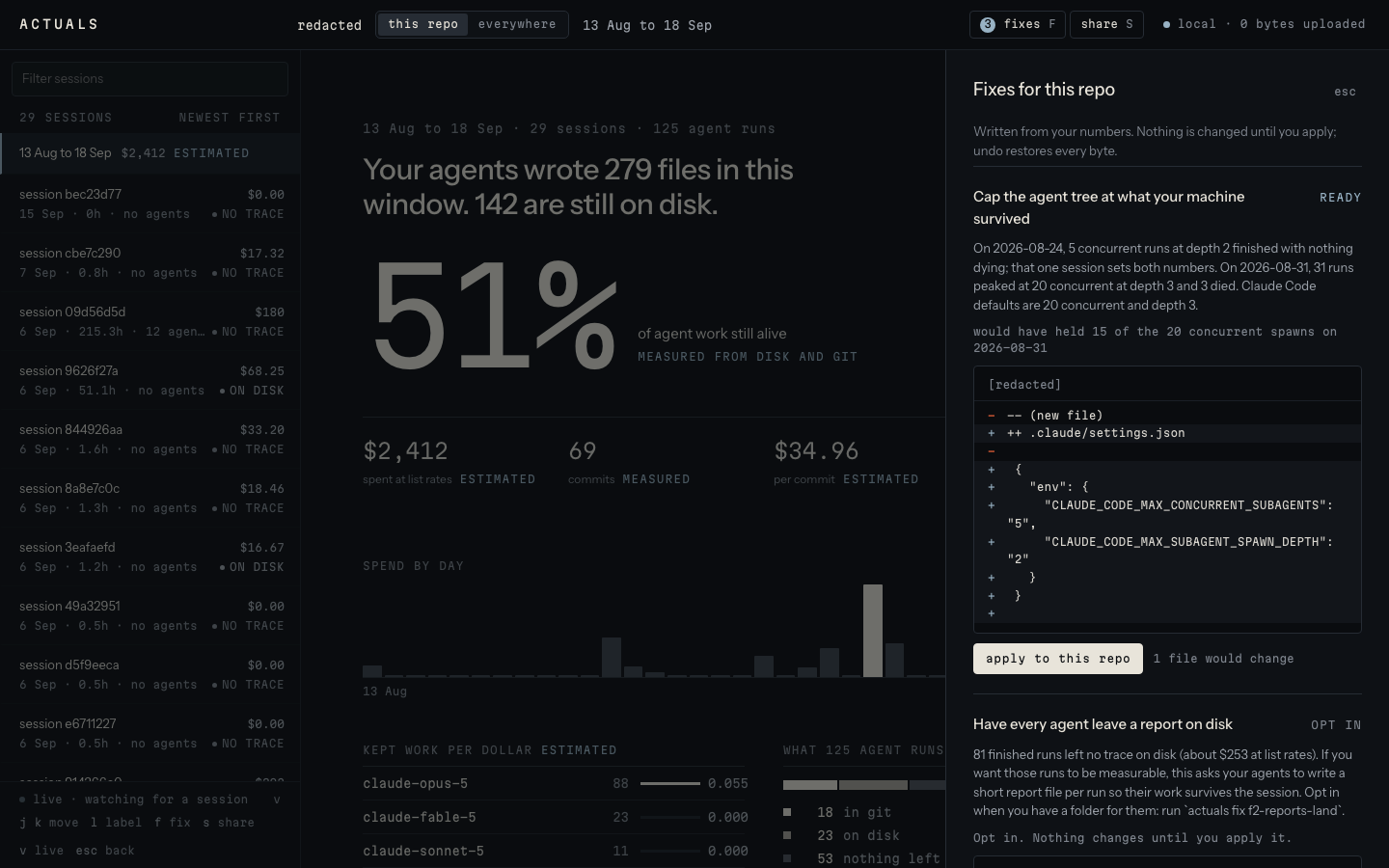
The first fix applies by default. The second is opt in. Nothing is written without a confirm. - Read the change, then apply to this repo. Or from the terminal:
07 Share the card.
s opens the card: three numbers and the curve, as a 1080 by 1080 PNG, aggregates only, with no file names, no prompts and no code. Copy it, save it, or post it.
- copy sticker puts the PNG on your clipboard; post on X opens a post with the text card.
- esc closes the panel and puts you back on the overview.
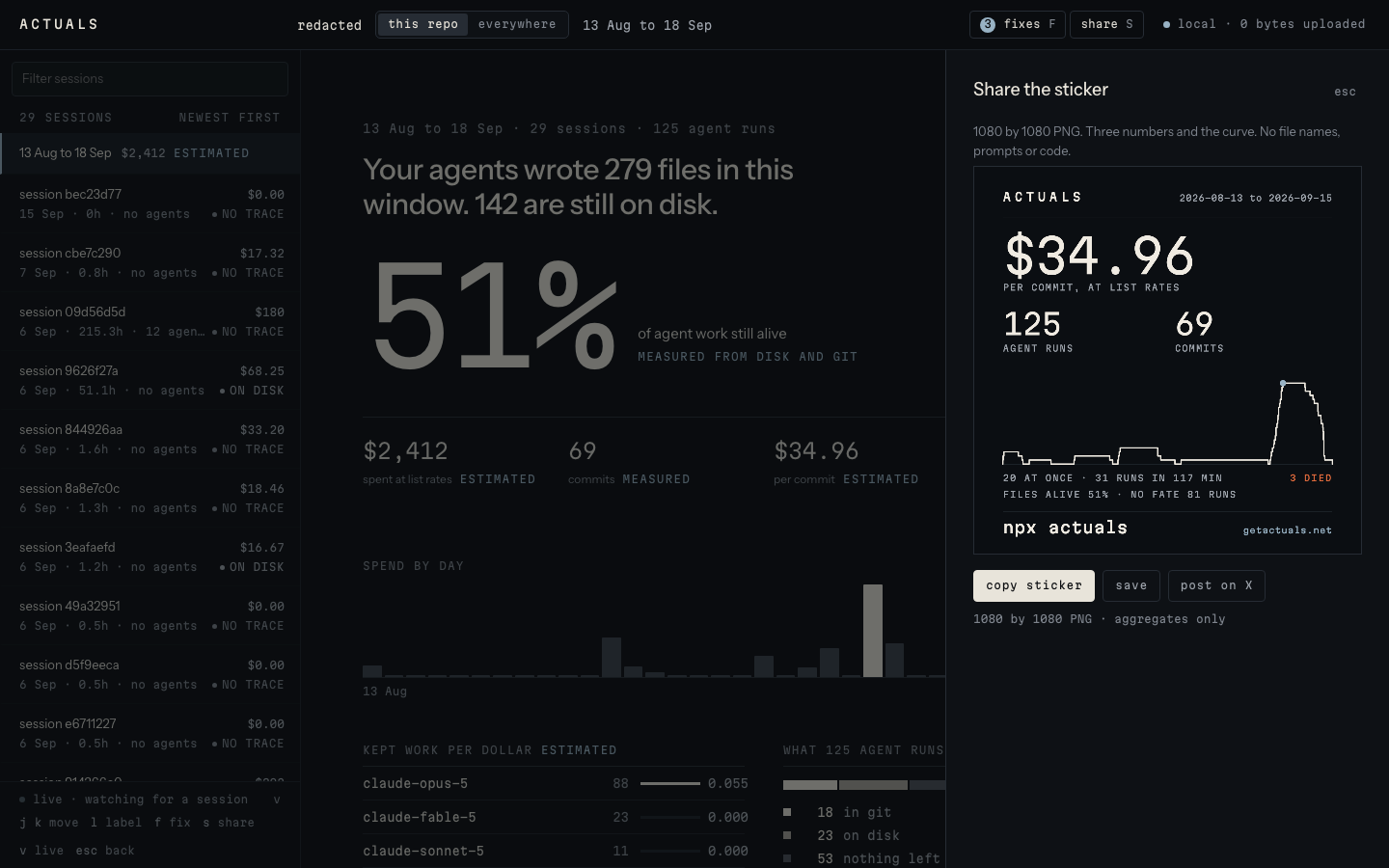
The card and its controls. Aggregates only, and nothing that names your work.
Terminal or VS Code
Same command, same report. The one difference is the live line.
| Where you work | What npx actuals watch does |
|---|---|
| A terminal | Puts one line in Claude Code's status bar: cost this session at list rates, context used, agents alive against the cap, and any that died. |
| VS Code | The extension has no status bar, so it opens the Live tab instead and prints the address; pin it with Simple Browser: Show. |
The commands
| Command | What it does |
|---|---|
npx actuals | Reads this repository's sessions, writes the report, opens the app. |
npx actuals --all-projects | The same across every project on the machine. |
npx actuals watch | Installs the status line and the hooks that feed the Live tab. |
npx actuals fix | Applies the default fix after one confirm; undo <fix-id> restores it. |
npx actuals share | Writes the sticker PNG and the post text locally. |
npx actuals doctor | Says what it can read on this machine and confirms that nothing touches the network. |
Nothing leaves your machine unless you choose to share your numbers, and you see them first. The numbers are the card's aggregates plus versions; actuals share --numbers turns sharing on after showing you the exact payload, actuals share --numbers --off turns it off, and the badge in the top bar says when it is on.